
Repair job card software that keeps every device accounted for
Give every device a digital job card at the counter: customer and device details, condition and accessories, the estimate and the customer's recorded approval. Take in several devices on one visit, assign a technician and follow each repair to handover.
Trial applications are reviewed before approval. Indian mobile numbers are verified with a one-time code (OTP); international applicants provide a valid mobile number.
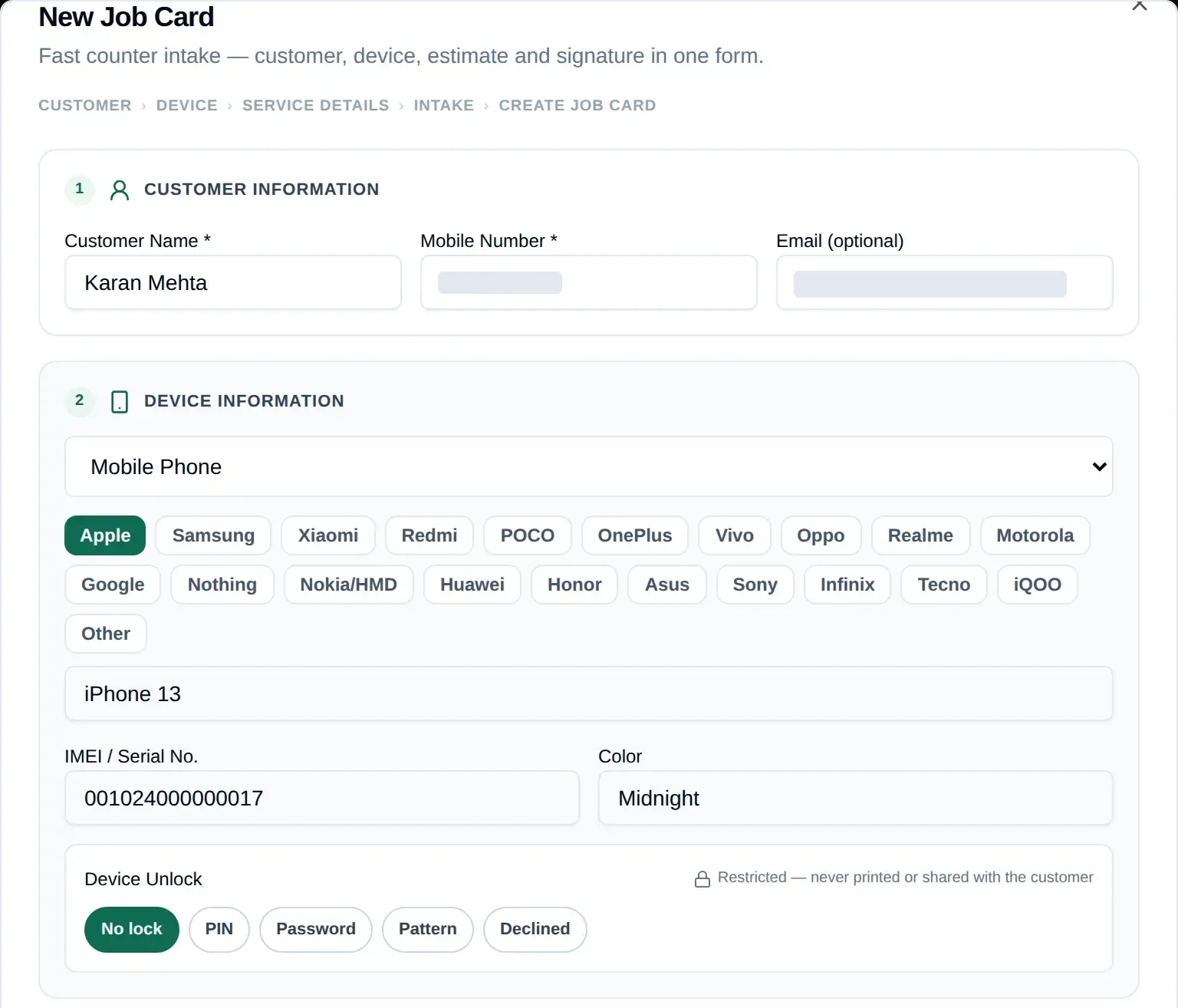
What goes on a RepairDesk Pro job card
A digital repair job card follows the same order as your counter conversation, so staff fill it in while the customer is still in front of them. Each device gets one job card that stays with it from intake to delivery.
1Customer details
Search for an existing customer or add a new one at the counter. Repeat customers keep their device and repair history.
2Device details
Device type, brand and model, IMEI or serial number and colour. Unlock details (PIN, password or pattern) are stored encrypted, shown to a technician only on jobs assigned to them, and every view is logged.
3Reported fault
The customer’s complaint, picked from common faults or typed in, plus the technician’s own intake observation.
4Device condition
A checklist for scratches, cracks and liquid ingress, pass/fail checks for touch, camera, speaker and buttons, and the battery percentage at intake.
5Accessories
Charger, case, SIM tray, memory card and anything else the customer leaves with the device, so there is a record of what to hand back.
6Repair estimate
An approximate estimate and any advance taken, so the customer knows the expected cost before work starts.
7Technician assignment
Priority, assigned technician and expected completion date, set at intake or later from the job.
8Repair history
Every status change is kept on the job’s timeline, together with notes, photos and the customer’s intake signature.
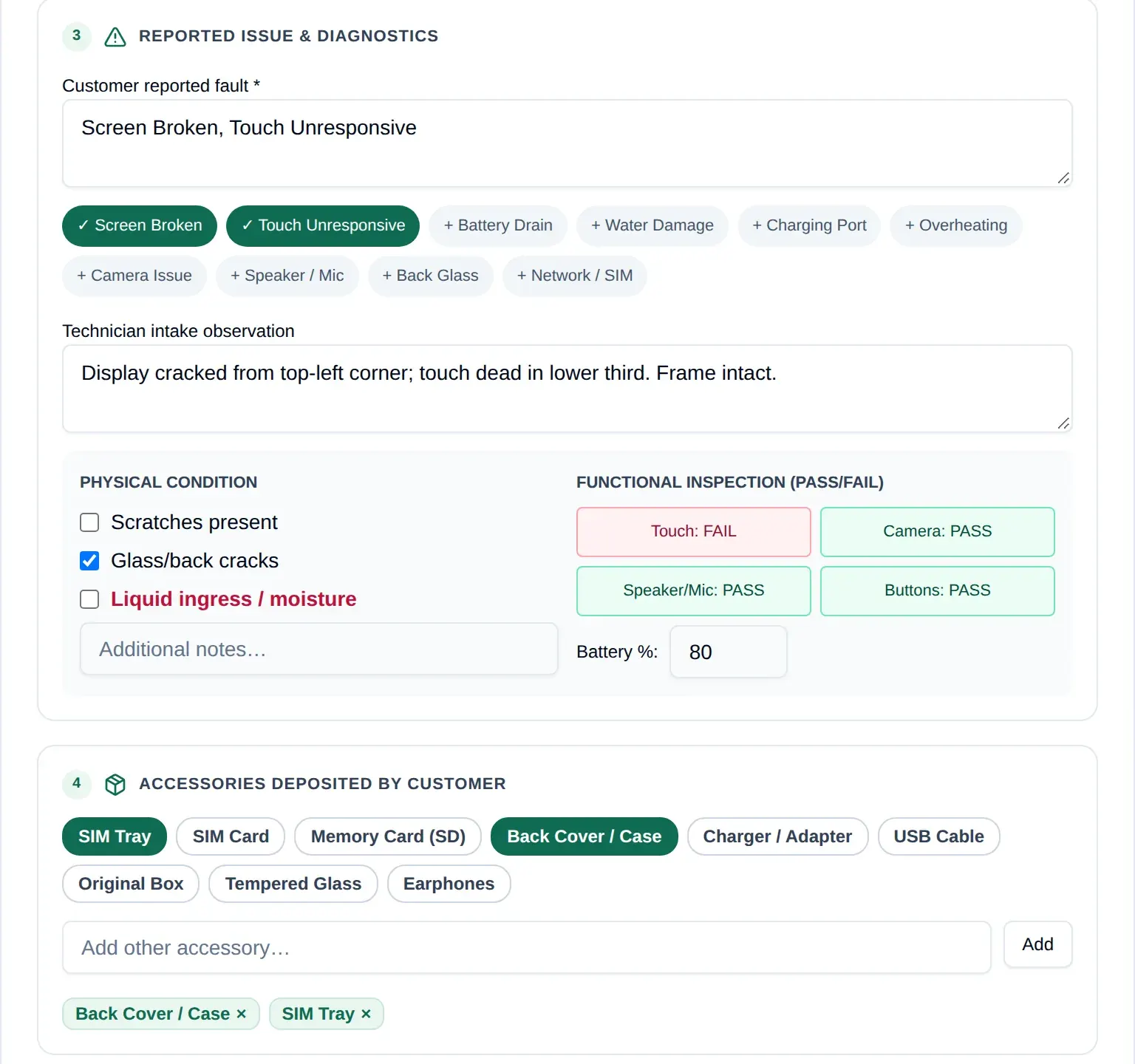
The customer signs on screen at intake, and a handover signature is captured at delivery. You can also attach device photos and record the device's original warranty status.
One customer, several devices, one intake
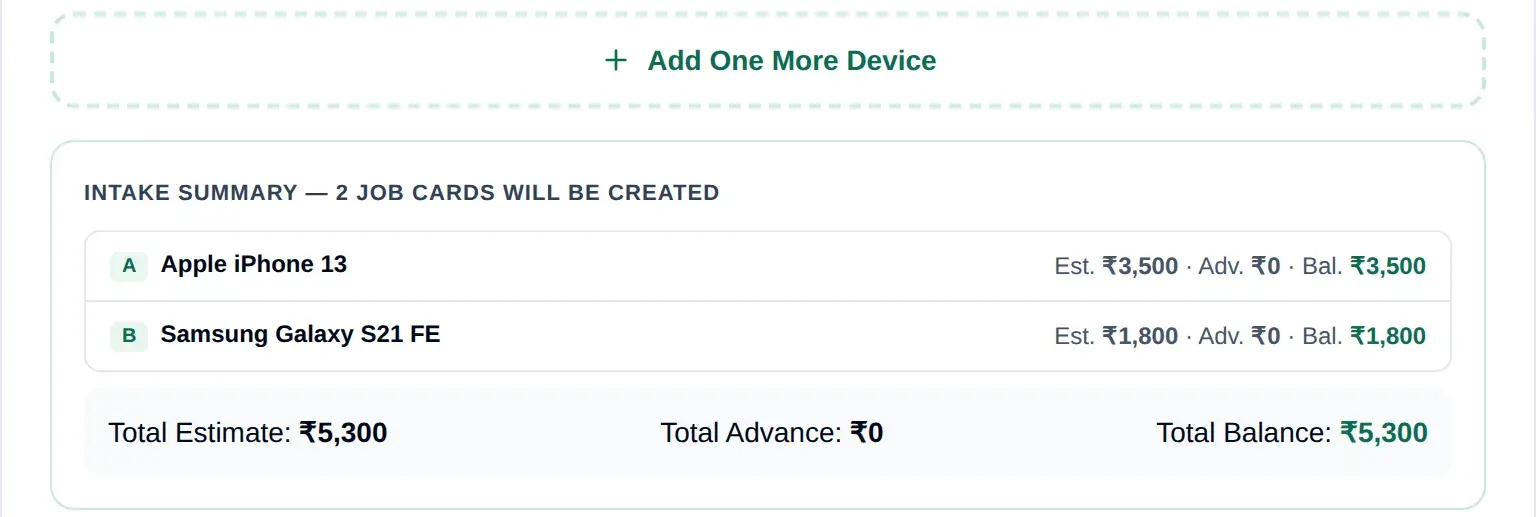
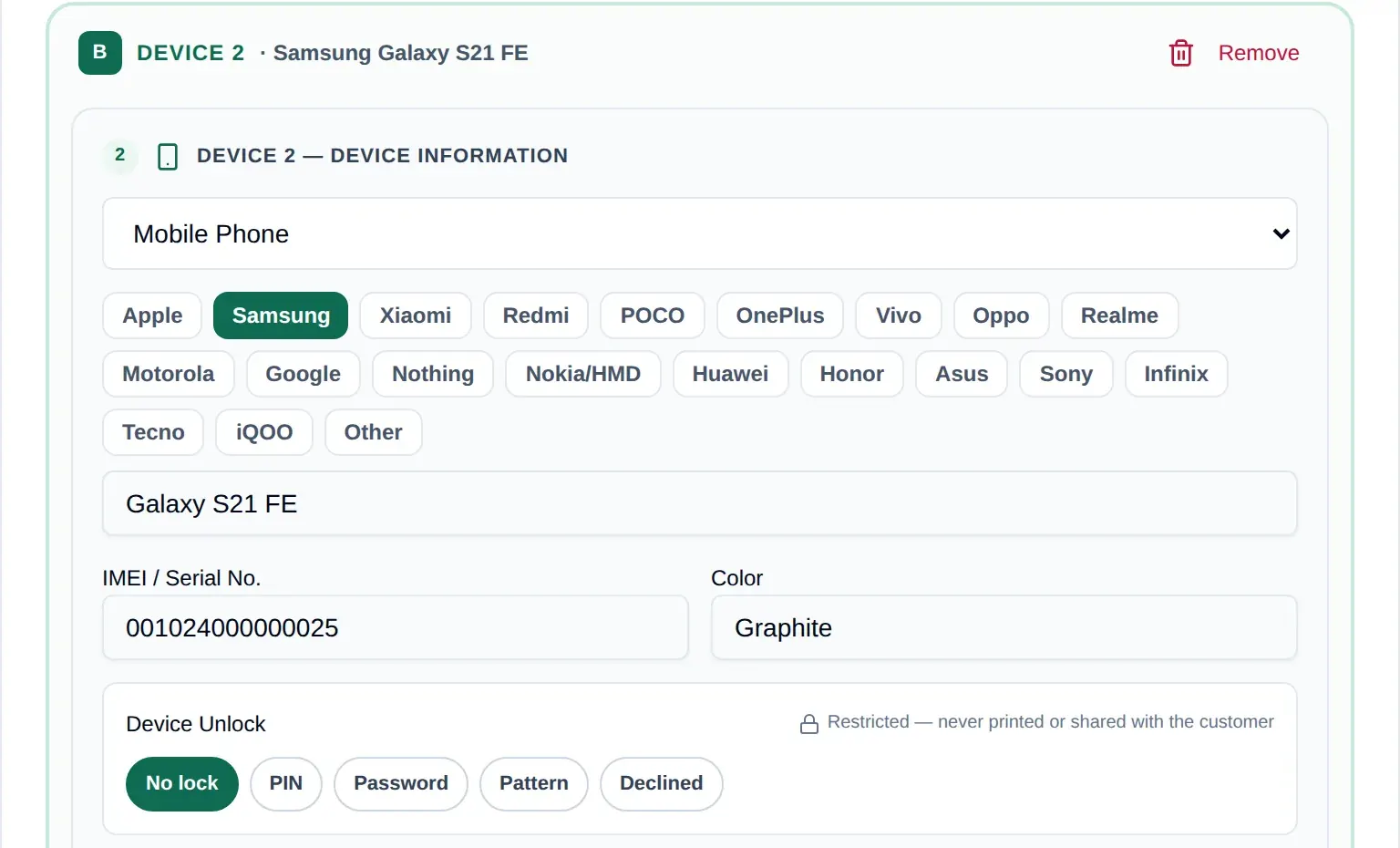
Customers often bring more than one device on the same visit: a phone with a cracked screen and a second phone that drains its battery, or a phone and a laptop. Instead of separate slips, staff create one intake and add each device to it.
Running a phone repair counter? See how RepairDesk Pro works as software for mobile repair shops, from booking a phone in to collection.
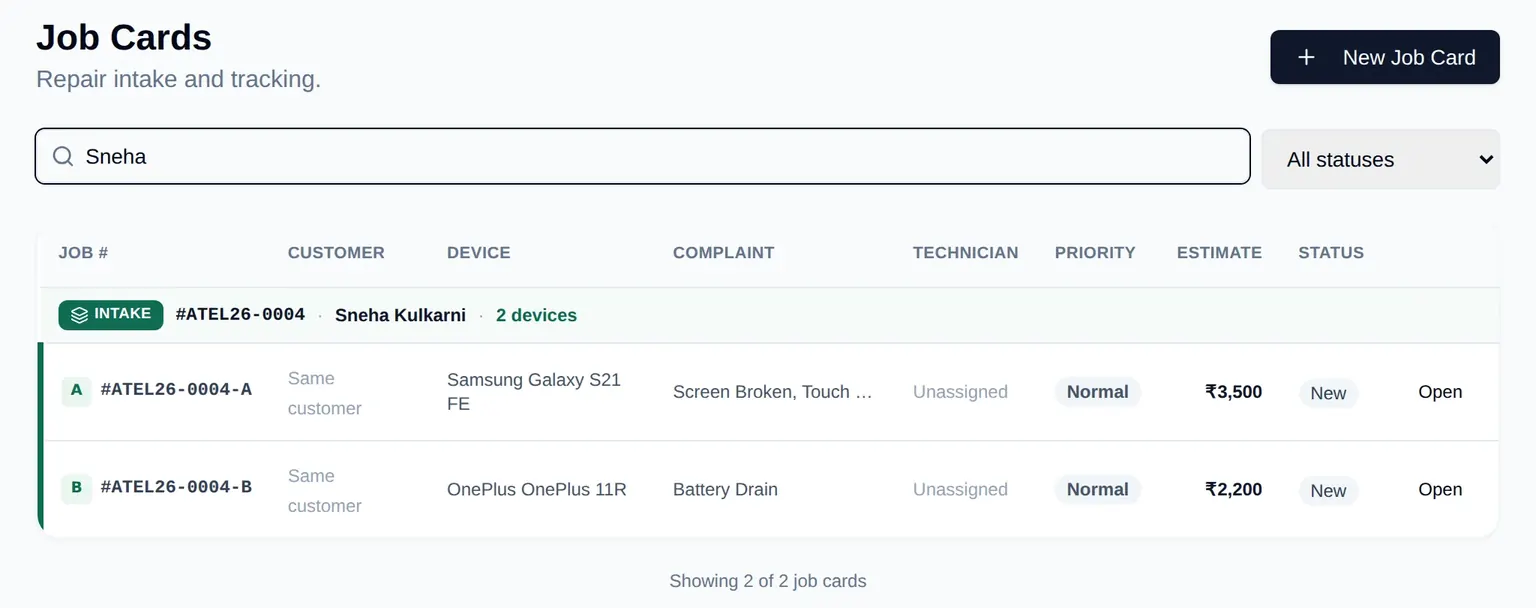
- Each device gets its own job card number ending in -A, -B and so on, so it is diagnosed, estimated, repaired, billed and delivered on its own.
- The customer still gets one combined job sheet for the whole visit, and one job card email if they gave an email address.
- Up to 10 devices per intake, with a warning if the same device is entered twice.
- The Job Cards list groups the devices under their intake, so the counter can see the whole visit at a glance.
Estimates, staff-recorded approvals and revised estimates
Recording the customer's decision
After diagnosis, staff prepare the estimate and select Send for Customer Approval, which moves the job to Awaiting Approval. You then discuss the estimate with the customer in the shop or by phone, and a staff member records their decision with Approve Estimate or Decline Estimate. The job records who entered the decision and when, and the approved amount is saved on the job.
When the repair cost changes
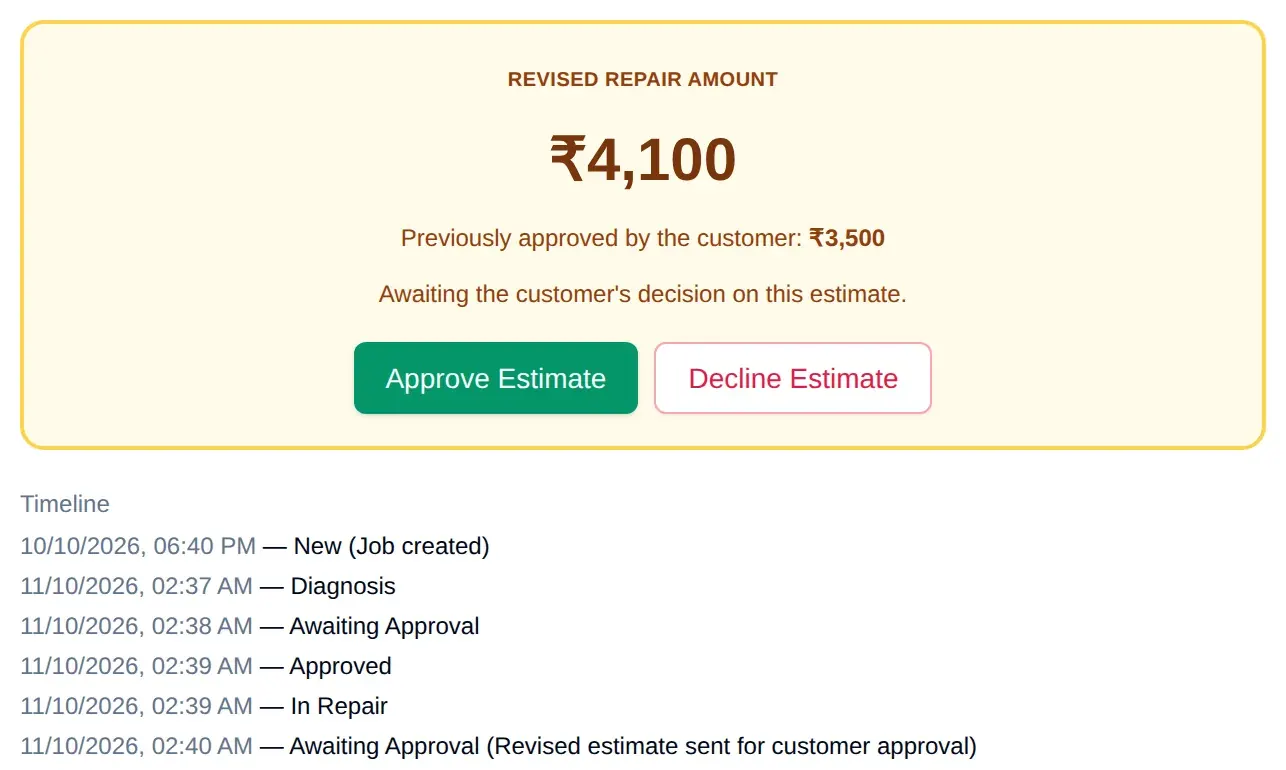
If the repair needs more work after approval, staff update the charge and select Send Revised Estimate. That moves the job back to Awaiting Approval; it doesn't message the customer. You tell the customer the new amount, and staff record their decision. If the charge changes again before that, RepairDesk Pro won't record the approval until the current amount has been confirmed.
Example from the screenshot
The customer approved ₹3,500 (parts ₹2,800, labour ₹700). During the repair the labour charge rose to ₹1,300, making the repair ₹4,100. Staff selected Send Revised Estimate, and the job now waits for staff to record the customer's decision on ₹4,100.
Why completion is blocked above the approved amount
A repair can't be marked complete while the current charge is higher than the amount the customer approved, so the customer has agreed to the final amount before handover.
Technician assignment and repair progress
Whether your team calls them job cards, work orders or repair tickets, RepairDesk Pro keeps them in one list. It works as repair work order software for the bench and as repair ticket management software for the counter.
Assign and prioritise
Assign or reassign a technician, set the priority and an expected completion date.
Track every stage
Each job moves through clear statuses, and every change is kept in the job's status history.
Find any job
Search by job number, customer name, phone or IMEI/serial, and filter by status, technician or store.
Usual path
- New
- Diagnosis
- Awaiting Approval
- Approved
- In Repair
- Repair Completed
- Ready for Pickup
- Delivered
Some steps happen together: Approve Estimate moves a job through Approved to In Repair, and Repair Completed moves it on to Ready for Pickup.
Other paths when needed
- Waiting for Parts:
- Optional. Pause a repair while parts are on order, then resume it or mark it completed.
- Revised estimate:
- If the charge goes up after approval, the job goes back to Awaiting Approval for a new recorded decision.
- Estimate declined:
- The job moves to Ready for Pickup so the unrepaired device can be returned.
- Cancelled:
- An owner or manager can cancel a job before the repair starts.
Printable repair job sheets and an emailed job card
If you have been looking for mobile repair job sheet software, this is the part your counter will use most. Print a job sheet for the bench or for the customer to take home.
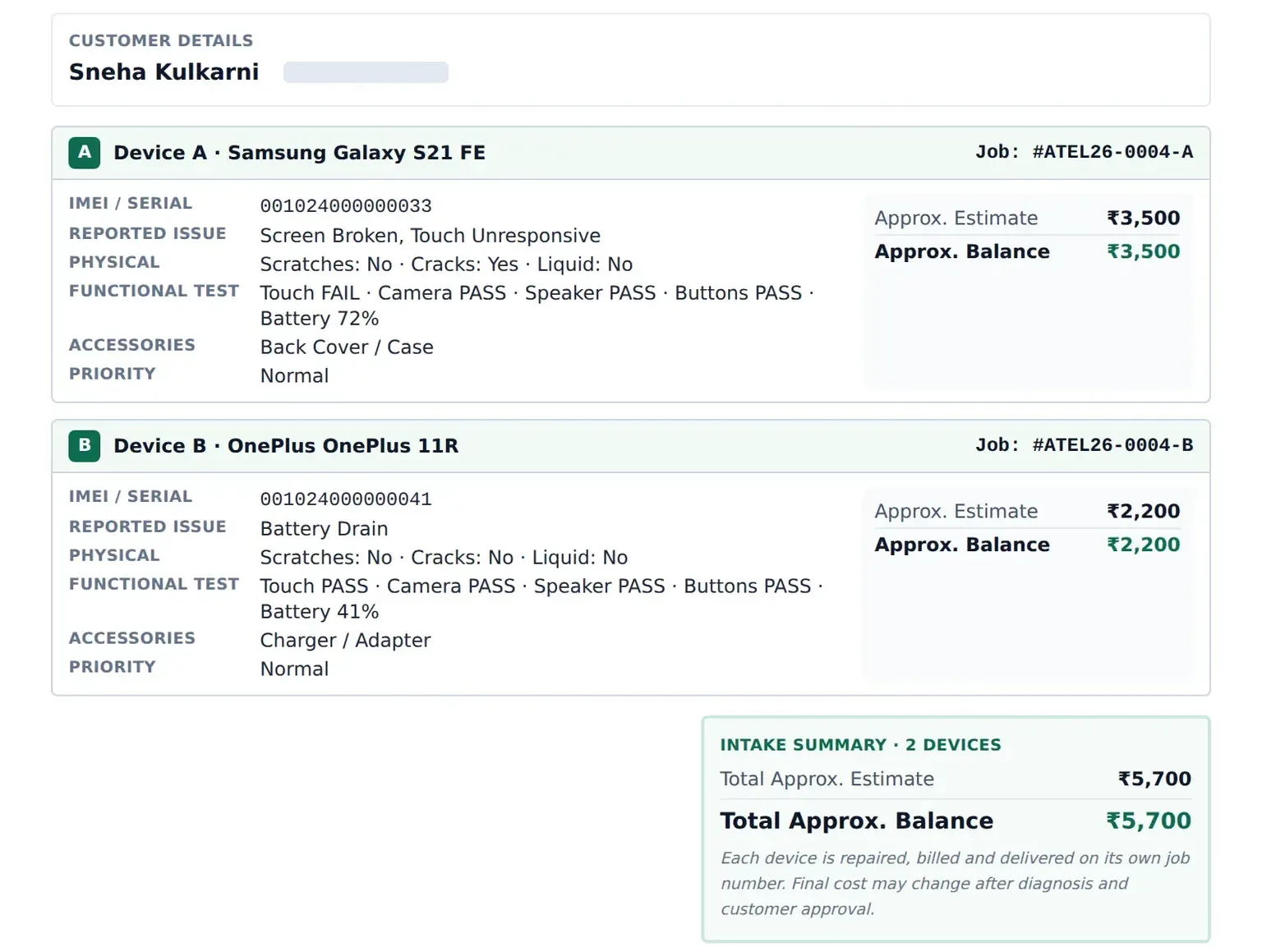
- A multi-device intake prints as one combined job sheet, with a section and job number for each device and a total for the visit.
- The sheet shows your business details, the reported issue, intake condition, accessories, estimates and the terms and conditions you set.
- If the customer gave an email address, the job card PDF is emailed automatically after they sign at intake, and staff can resend it.
Let customers check their repair status
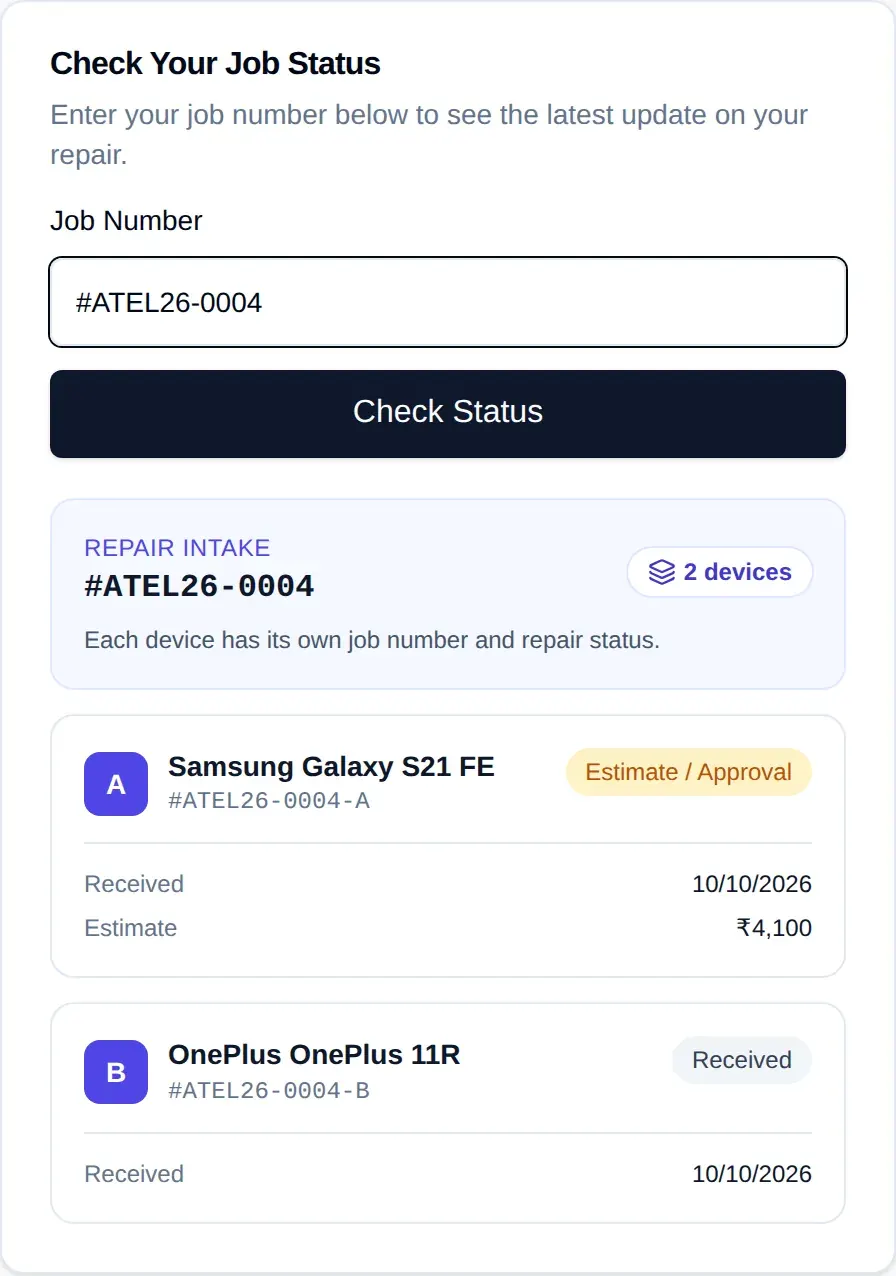
Customers enter their job number on your Customer Status Page, with no login, and see the current stage of their device. For a multi-device intake, the base number shows every device with its own job number and stage.
It gives customers a way to check progress without calling, which can take some “is my phone ready?” calls off your counter.
Available on eligible paid plans
The Customer Status Page runs on your business's own subdomain, which our team configures on eligible paid plans. It isn't available during the free trial. See plans and pricing
Paper job sheet vs digital job card
Paper registers work for many shops. Moving from a paper job sheet to a digital repair job sheet mainly changes how quickly a service centre can find a job and how much is recorded at each step.
Repair job card software: frequently asked questions
What is repair job card software?
Can I print a job sheet?
Can one customer have several devices on one intake?
Do customers approve estimates online?
What happens if the repair cost goes up?
Is the job card sent to the customer?
Can I try it first?
More questions? Contact us, read about RepairDesk Pro, or see all features.
Apply for a 5-Day Free Trial
See how digital job cards work in your own shop. Our team reviews each trial application, and once it is approved we email you a link to set up your account.
Every application is reviewed by our team, and the trial starts only after approval and activation. Indian applicants verify their mobile number with a one-time code (OTP); applicants outside India provide a valid mobile number without OTP verification. No payment details are needed to apply.